
How to import to Proton Pass from Chrome
- Leitura
- 1 min
To transfer your Google Chrome passwords to Proton Pass, you’ll first need to download them from the Chrome browser to your device. Then you can upload your passwords to Proton Pass.
- Export your passwords from Google Chrome
- Import your passwords to Proton Pass
- Delete your passwords from Chrome
Export your passwords from Google Chrome
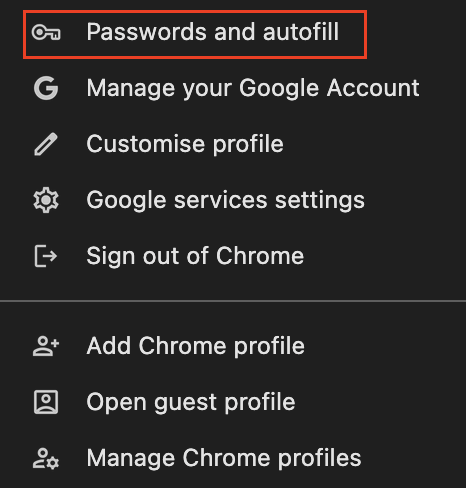
- Open your Chrome browser and click your profile picture (this should be in the top right hand corner of the page).

- Select Passwords and autofill from the settings menu.
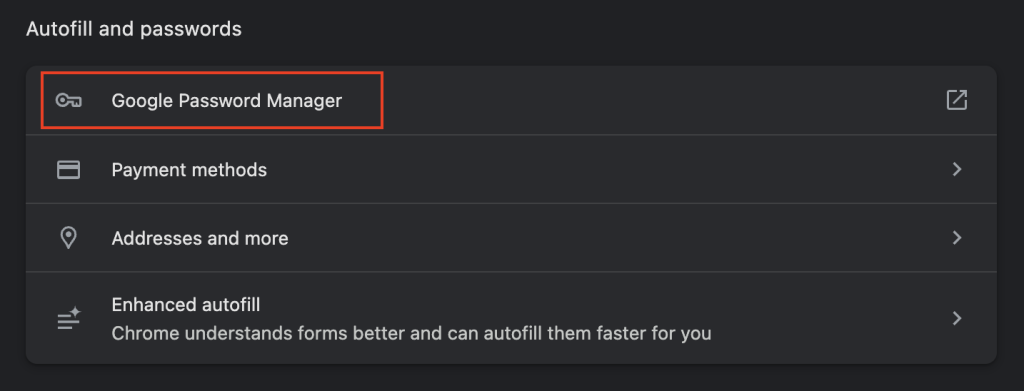
- Select Google Password Manager.
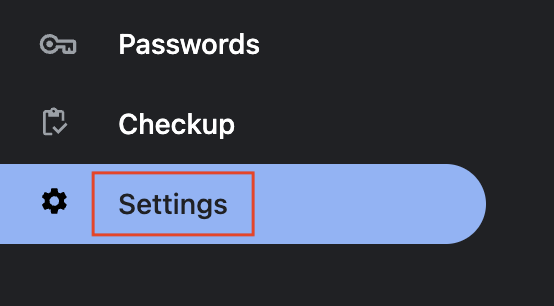
- Select Settings.
- Go to Export passwords and select Download file.
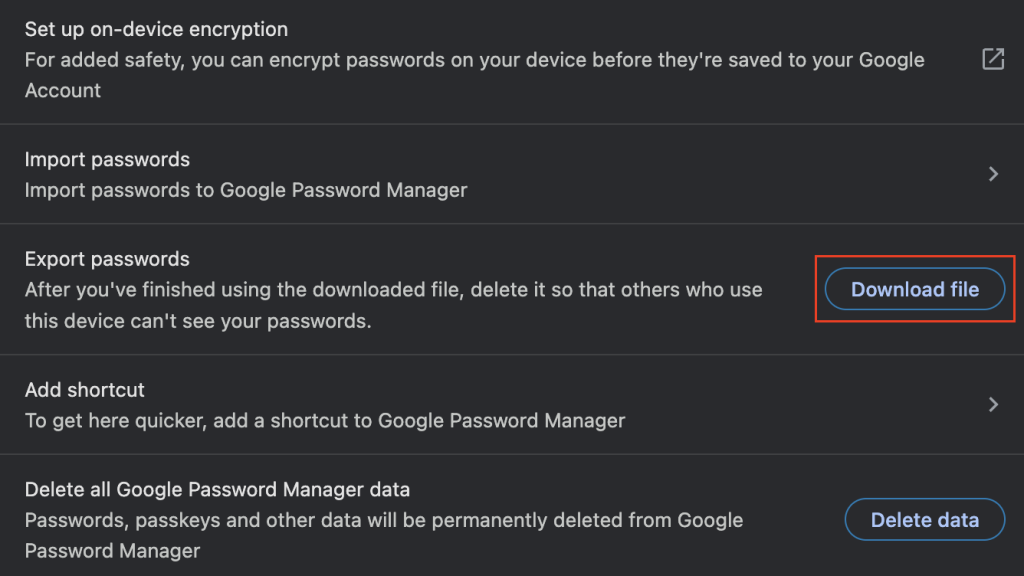
This will download your Chrome passwords as a .csv file.
Import your passwords to Proton Pass
Import to the Proton Pass browser extension
1. Open the Proton Pass browser extension and select ☰ (Navigation) → Settings.

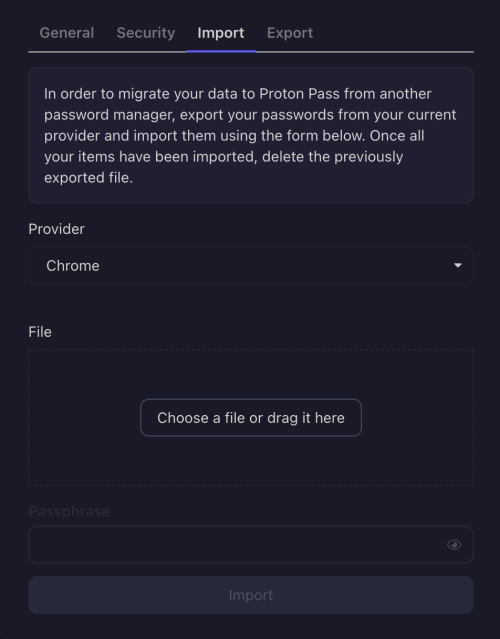
2. Go to the Import tab and select Chrome from the Provider menu.
3. Upload your files. You can do this by dragging your .csv export to the File box, or by clicking Choose a file or drag it here to upload the file from your device. Click Import when you’re done.
Import to Proton Pass for iOS
- Select the profile icon.
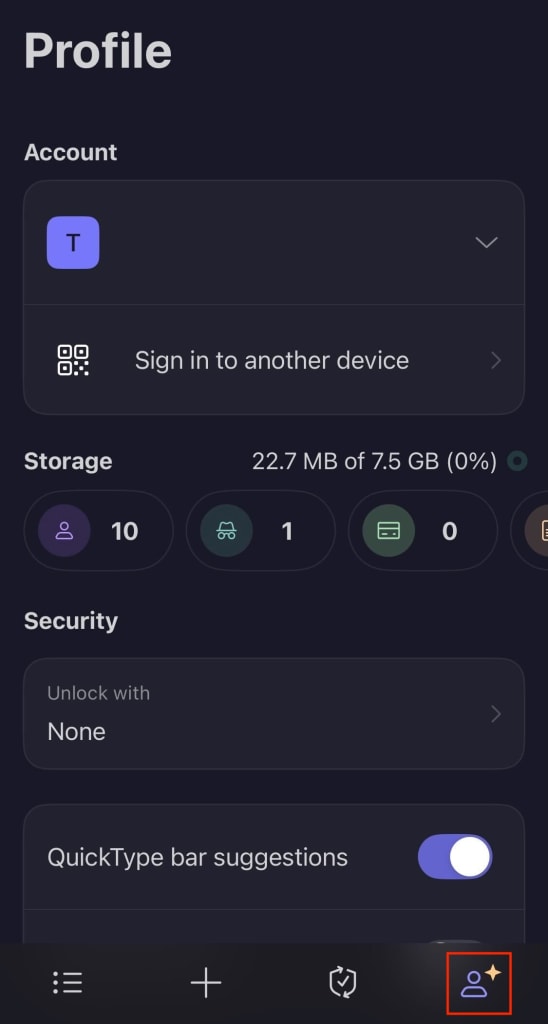
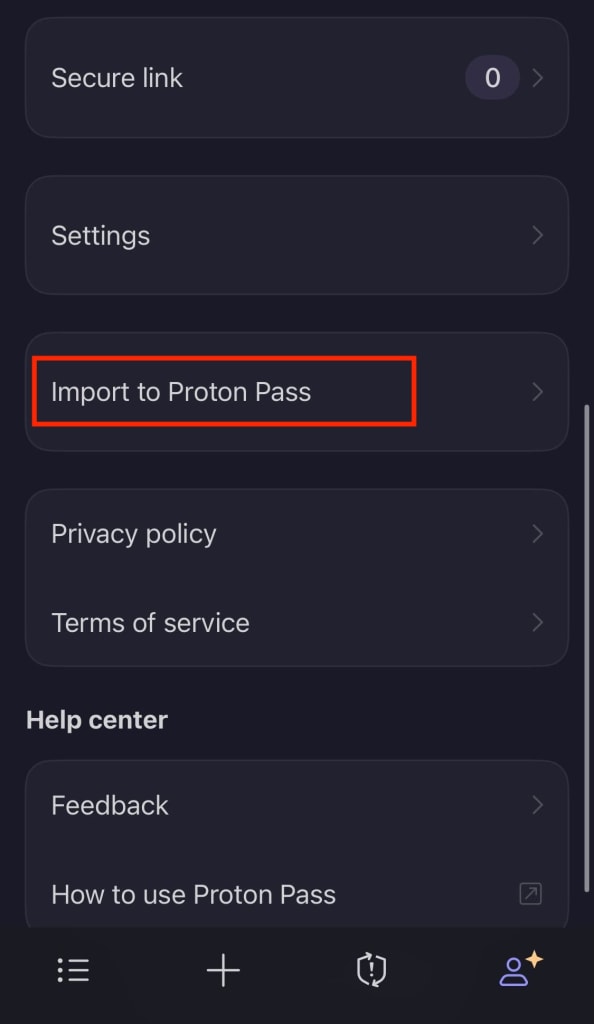
- Select Import to Proton Pass.
- Select Import from Chrome.
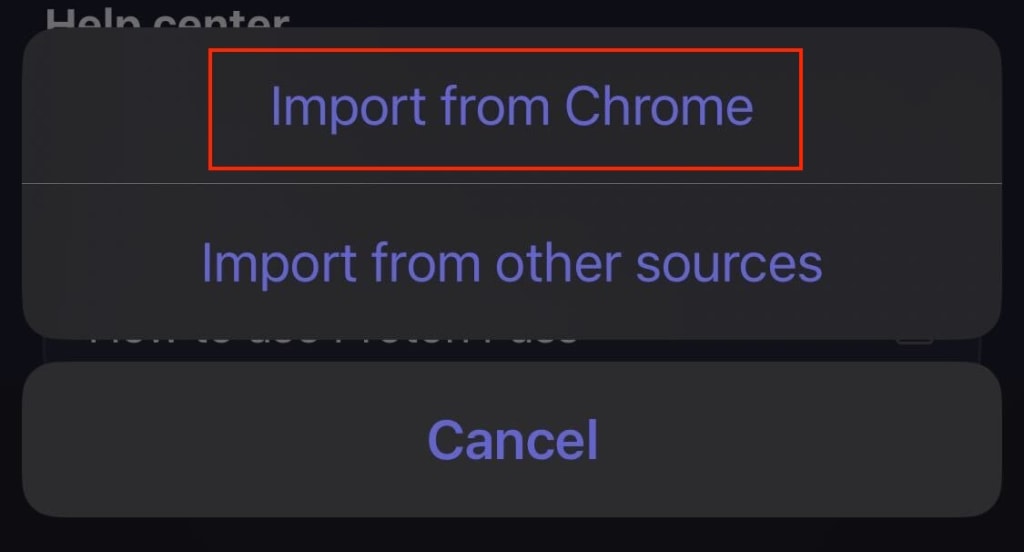
4. Select Choose a file and select the file you downloaded from Chrome.
Delete your passwords in Chrome
Once you’ve uploaded your passwords to Proton Pass, you can delete your passwords (and all of your personal data) from Google Password Manager.
- Open your Chrome browser and select your profile picture in the top right corner of the page.

- Select Passwords and autofill.
- Select Google Password Manager.
- Select Settings.
5. Select Delete Data.
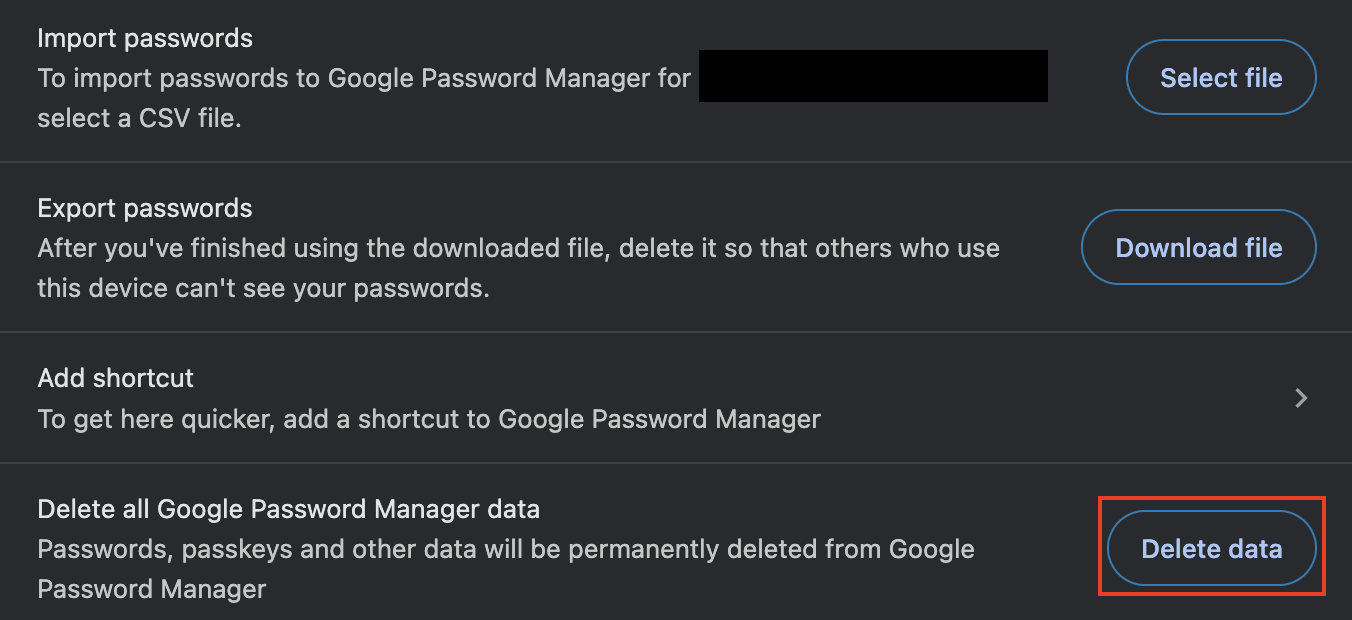
6. Confirm that you want to remove all of your data from Google Password Manager by selecting Delete.
